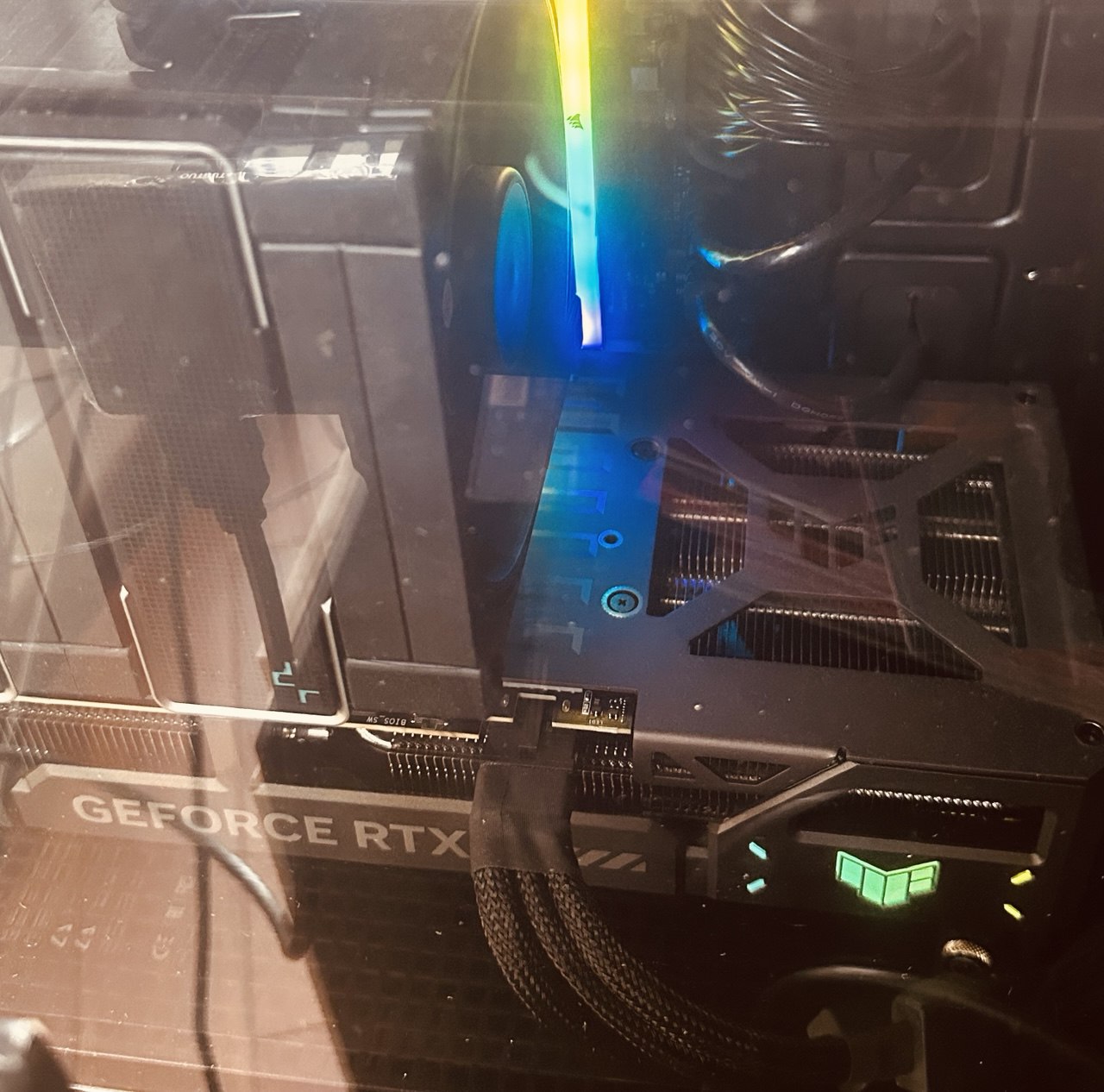
Hey everyone! In this post I’m gonna walk you through the process of installing Official Linux Nvidia Drivers for the RTX 50 series graphic cards on Debian 13 (Trixie). Some issues I found and other scenarios to consider such as OS upgrades.
Something I love when using GNU/Linux is that there are multiple ways to solve a problem. And sometimes it will depend on the hardware you are using, architecture, desktop environment, etc, etc.
There are two options, the recommended way (using Nvidia repositories) and the other alternative which is installing the .run file. I will show you both.
Let’s get our hands dirty!
My love relationship with Debian
My best friend introduced me to Debian in 2009, it was Debian 5 (Lenny), and I have been using it since then, initially as dual-boot when Windows XP was still a thing and in 2013 I started using Debian 100% for all the things I did, including work. I tested other distributions, and personally I liked Debian because it’s boring and it simply works, it does what it has to do for me. I mostly don’t need the latest version of all the software, and after I started using Docker back in 2015, having the latest version of most software was not an issue whatsoever for me anymore. Of course for certain things that didn’t work out-of-the-box, I had to do a couple fixes, but 99% of the time, everything that I need works fine. I’ve always used the stable version, no testing nor sid.
Something important to mention is that I don’t use brand-new hardware nor GPU, I like to buy refurbished/used computers, usually ones launched 5 years ago such as Thinkpads, or other used desktop workstations. And I didn’t have issues with drivers, compatibility, etc. Everything worked like a charm for all the things I required.
Since mid-2025, I started doing some research on AI and decided to do it on my local setup and not cloud (I was using AWS), so this time I decided to buy the parts for a new desktop computer, and one of the parts is a Nvidia RTX 5070 Ti, which was released almost a year ago.
Surprise, surprise. Debian 13 didn’t work with RTX 5070 Ti out of the box! Debian does not officially support the latest drivers for this model.
So when you install Debian and on your first boot, you will see the black screen with the terminal prompt blinking. That means your Desktop environment did not load because you don’t have the proper drivers installed for your graphic card.
In that case you could ssh to your machine from another machine, or use the TTY (that black terminal), to run the following steps, it’s up to you!
Driver installation
Disable Nouveau
By default, Debian will install the Nouveau kernel module, we need to ignore it.
Let’s check if Nouveau is actually being used first:
lspci -nnk | less # and search for VGA Controller

01:00.0 VGA compatible controller [0300]: NVIDIA Corporation GB203 [GeForce RTX 5070 Ti] [10de:2c05] (rev a1)
      Subsystem: ASUSTeK Computer Inc. Device [1043:89f4]
      Kernel modules: nouveau
In this case the kernel module is being used, so we need to blacklist it. Let’s create the following file /etc/modprobe.d/blacklist-nouveau.conf with the following content:
blacklist nouveau
options nouveau modeset=0
Let’s recreate the initramfs which is required every time we want to enable/disable kernel modules and reboot the instance:
sudo update-initramfs -u
sudo reboot
Again, no graphical user interface (it’s expected) so we log in via terminal and validate that Nouveau kernel driver is not used anymore.
lsmod | grep nouveau
# should not print anything
Requirements
First, let’s uninstall any nvidia related package, you should not have any in case you have a fresh installation though.
apt remove --purge '*nvidia*'
We need to install some build utilities to build the official Nvidia drivers. For that we run:
apt update
apt install linux-headers-$(uname -r) build-essential libglvnd-dev pkg-config dkms
Method A: The recommended way, using Nvidia repositories
This method is also mentioned in official Debian documentation.
It’s a very simple method, you add the APT repository, update, and install the drivers. However Nvidia official documentation (at the time of writing 2026-02-27) is not updated and some links they suggest are broken. So if you want to go with this method, I recommend you the following video instead:
Important Note: It is important to note that at the time that video was recorded, Nvidia had an APT repository that only supported Debian 12, however it is compatible with Debian 13 (it is mentioned on the video).
If you use the method in the video today, you will see that adding the Nvidia repo will add a repo for Debian 13 now, however it only has the 590 version of the Driver which is still under development. So I recommend you using the Debian 12 repo for 580.x.x versions of the driver.
Method B: Using the .run installer
For this method you need to download the .run installer from Nvidia’s website and search for the available drivers for the RTX 5070 Ti.
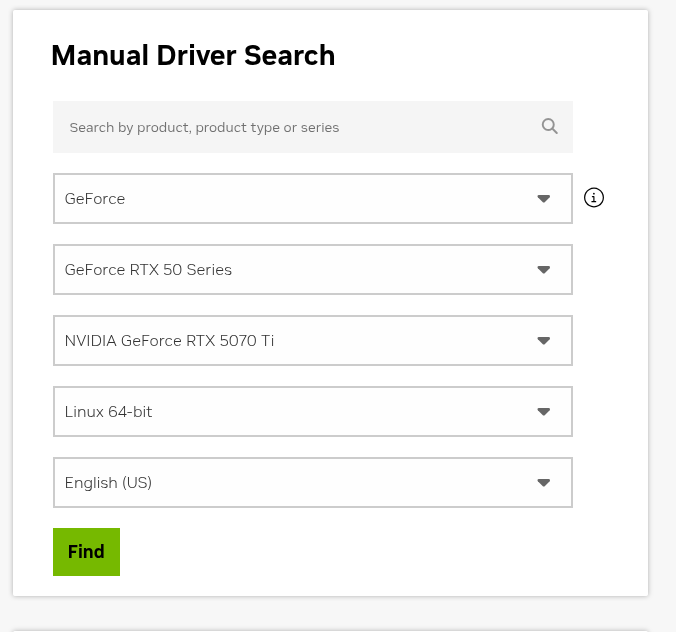
In my case, I chose the latest version and after downloading it, you must add execution permissions to the .run file.
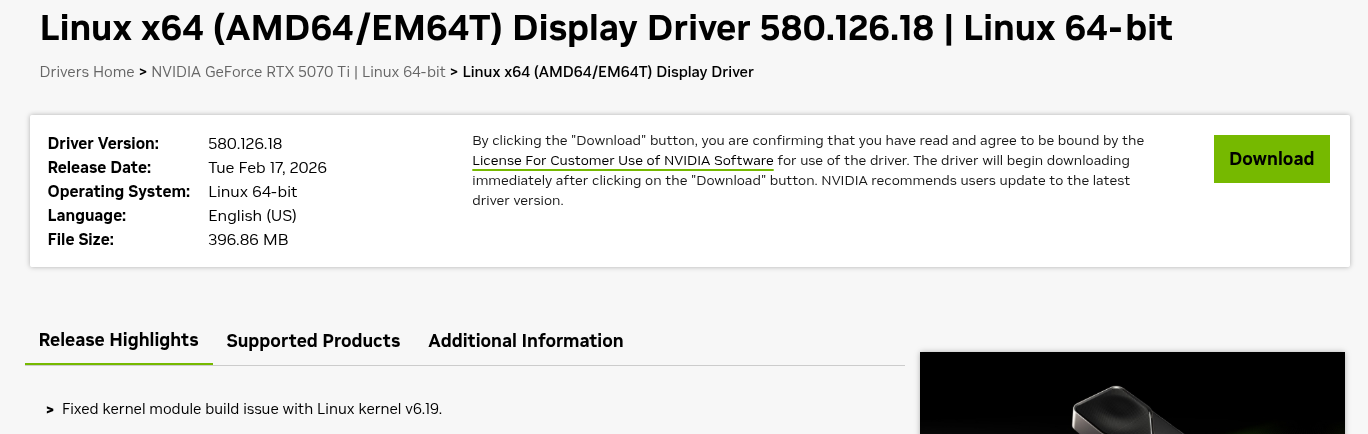
chmod +x NVIDIA-Linux-x86_64-580.126.18.run
Now let’s execute it the following way.
sudo ./NVIDIA-Linux-x86_64-580.126.18.run --dkms
The --dkms flag means that the Nvidia driver will be re-built automatically when we upgrade our OS with a new version of the Linux kernel (see next section).
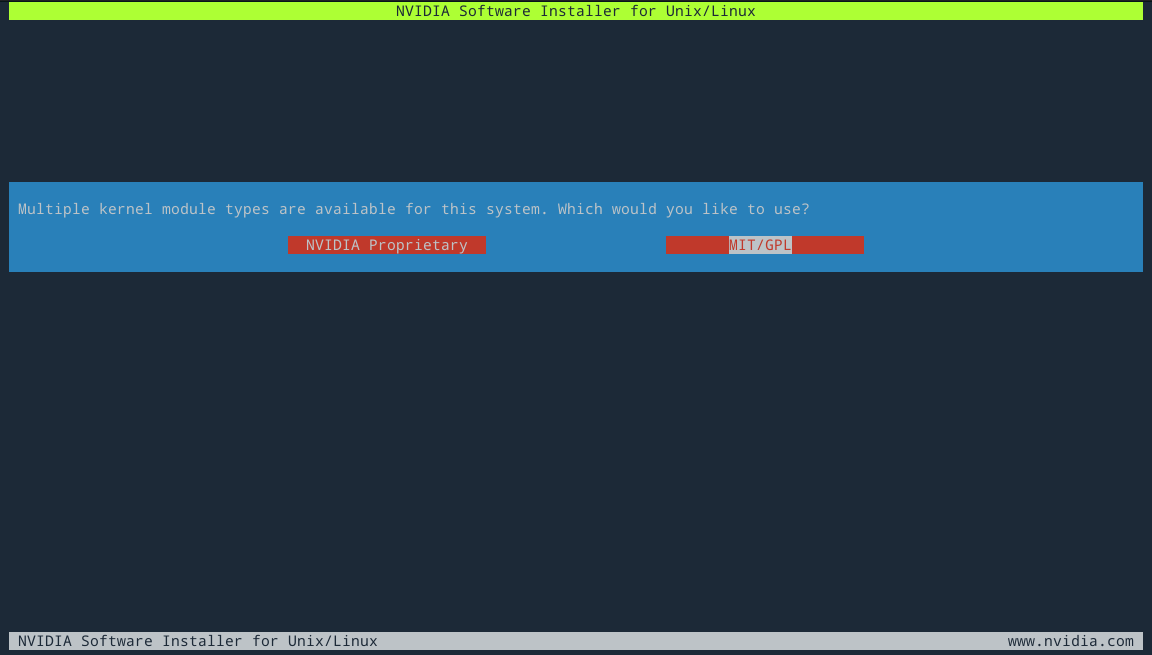
Make sure to choose MIT/GPL, as for the latest models, we must use the official open source version of the drivers (thanks Lapsus$).
Follow the next steps accepting DKMS, build initramfs, update X11 configuration.
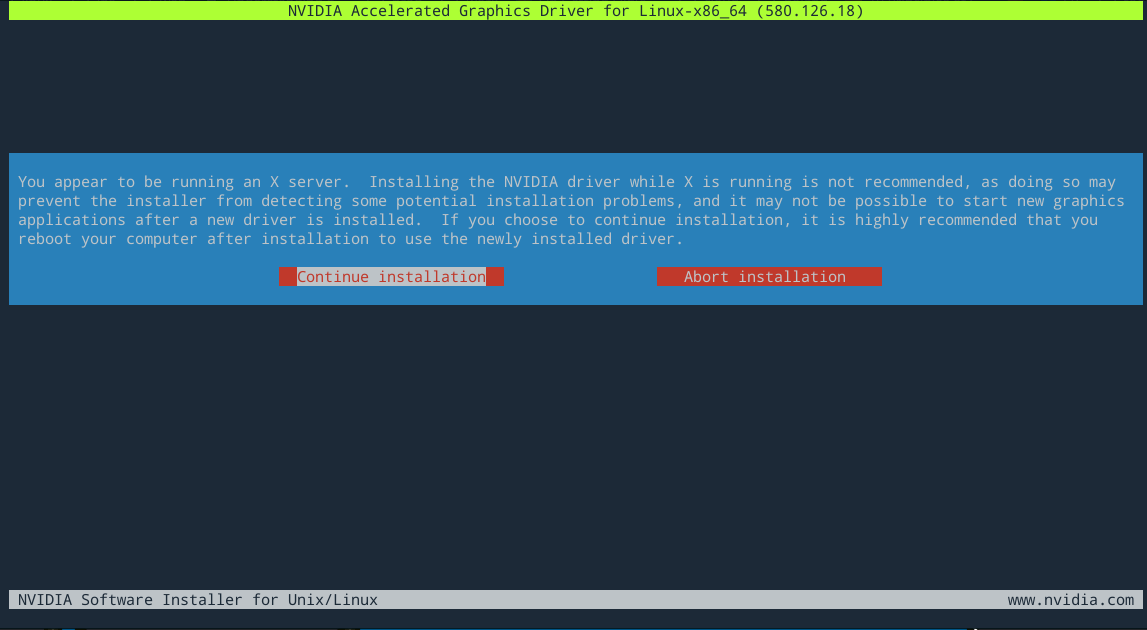
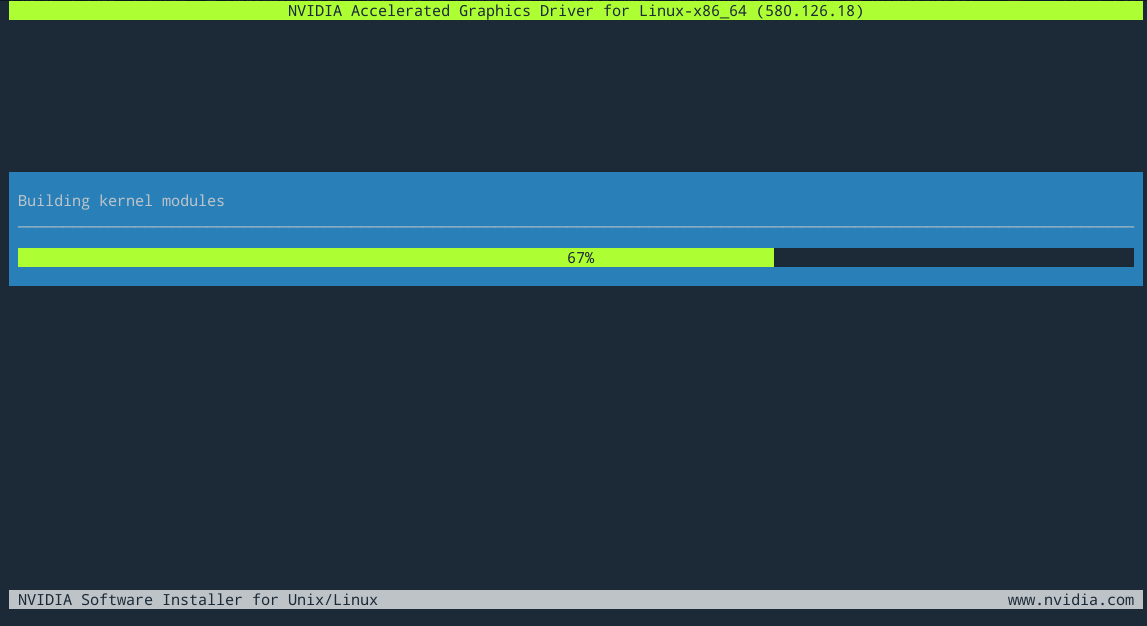
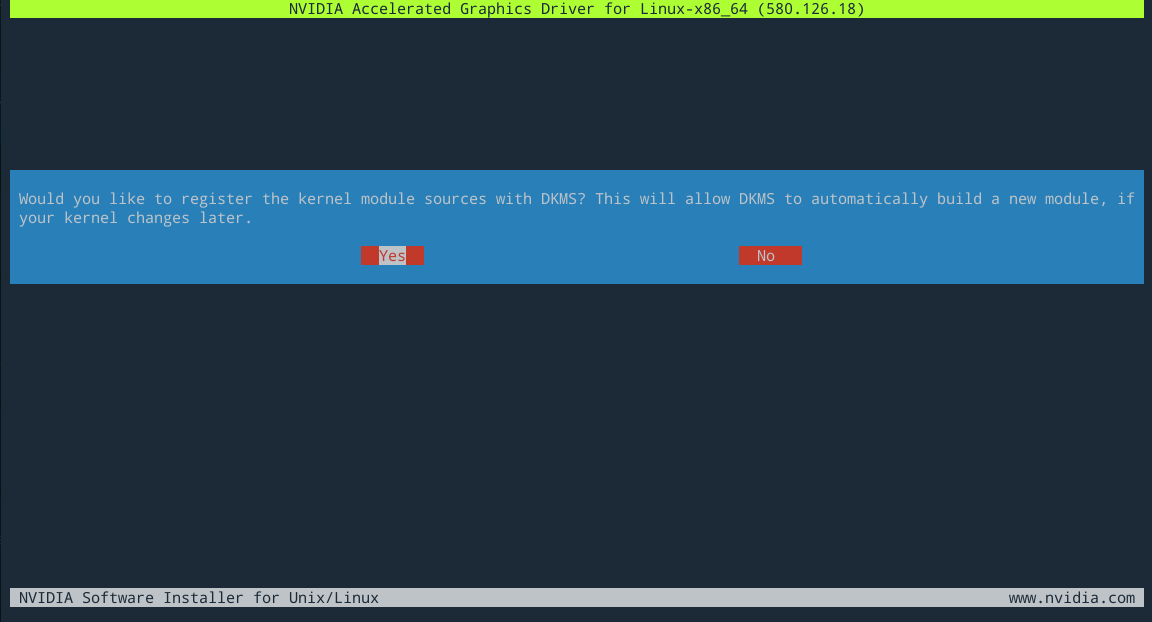
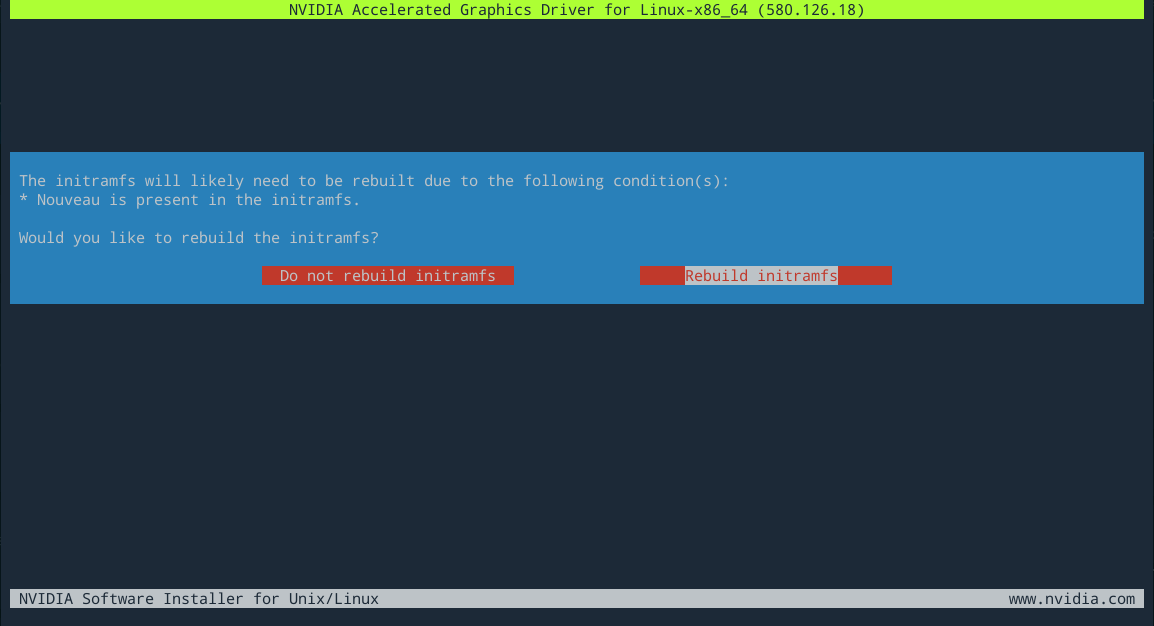
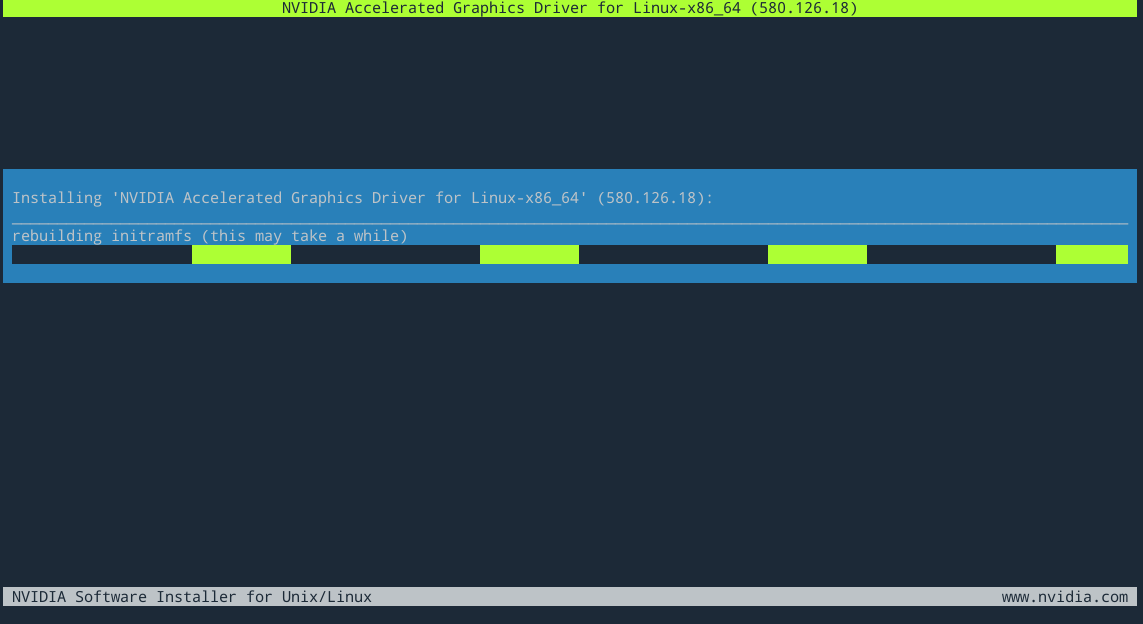
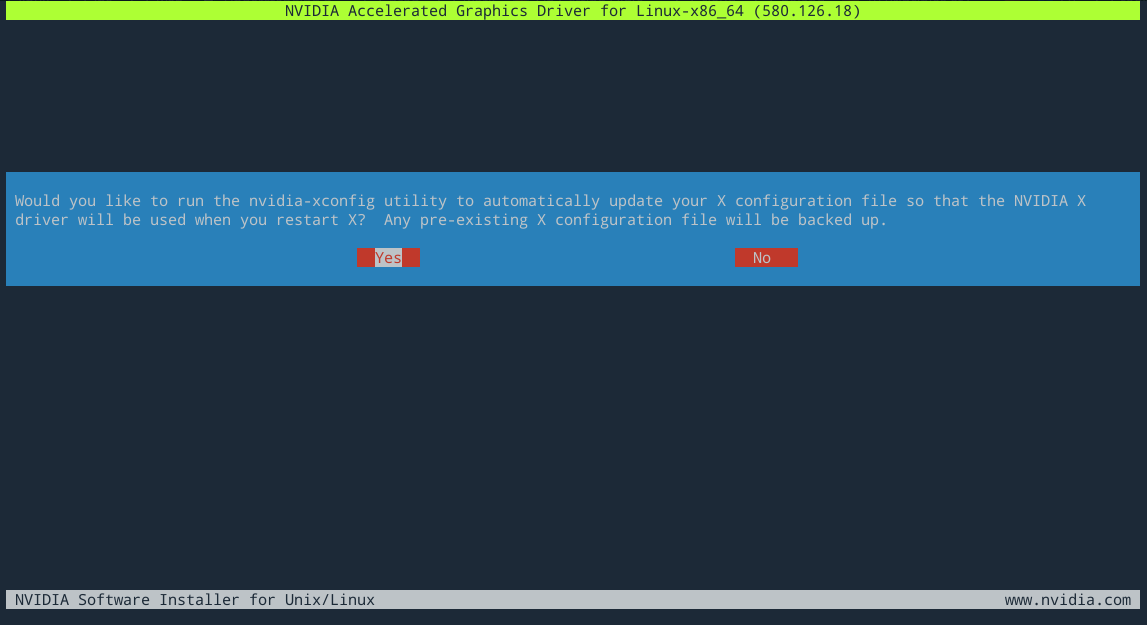
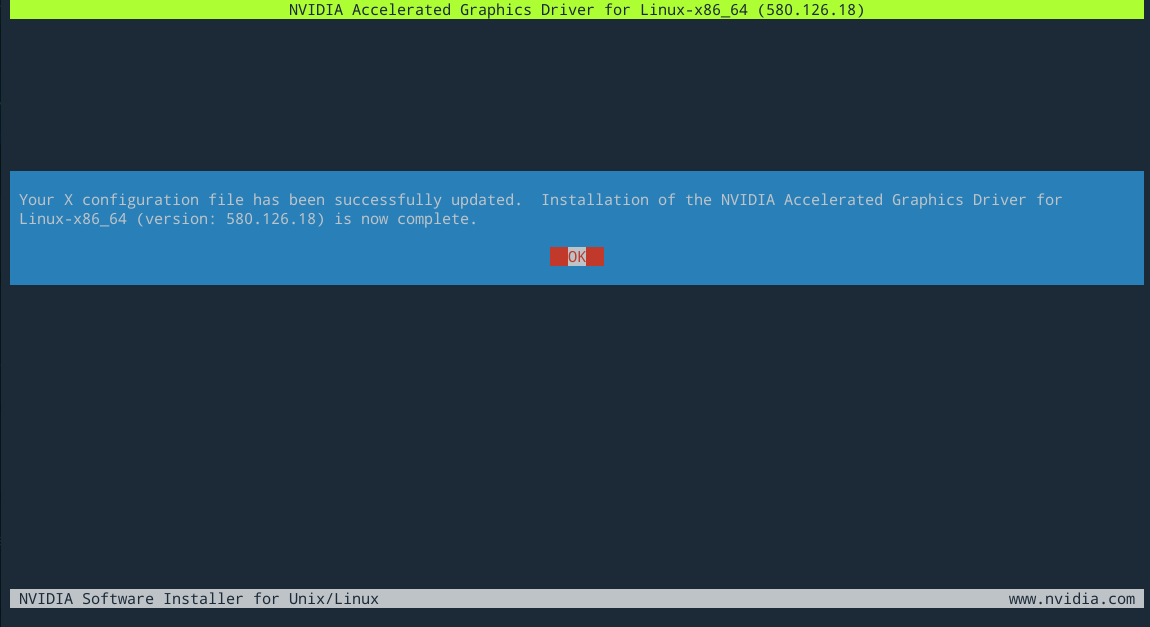
And that’s it. Once the installation finishes, reboot your computer and you will be able to use your desktop environment just as usual.
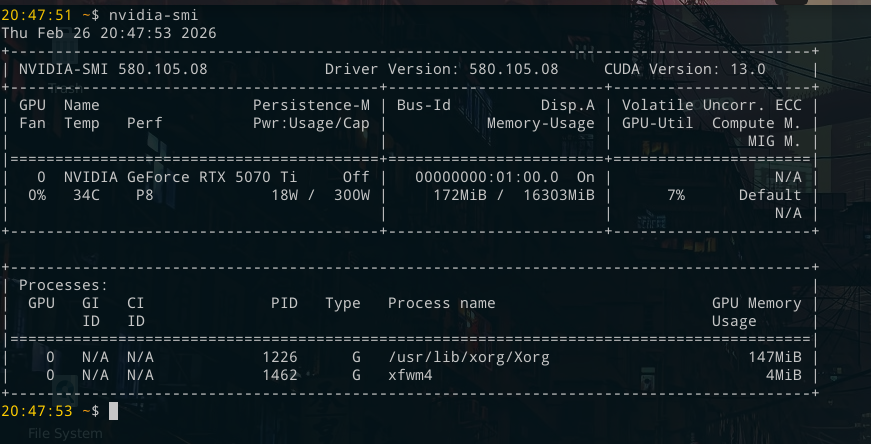
In order to make sure everything is working, just run the nvidia-smi program:
Method B: Upgrading Debian 13
When trying to upgrade to the latest Debian available, it’s more likely that there will be a new version of the Linux kernel to be installed. That means that the driver you previously installed will not work anymore as it was compiled for the previous version of the kernel.
If you installed the .run driver with DKMS, upgrading should work like a charm and it will rebuild the driver and install it during the upgrade.
sudo apt update
sudo apt upgrade -y
You will see that during upgrade, the kernel module is being built for the new kernel version.
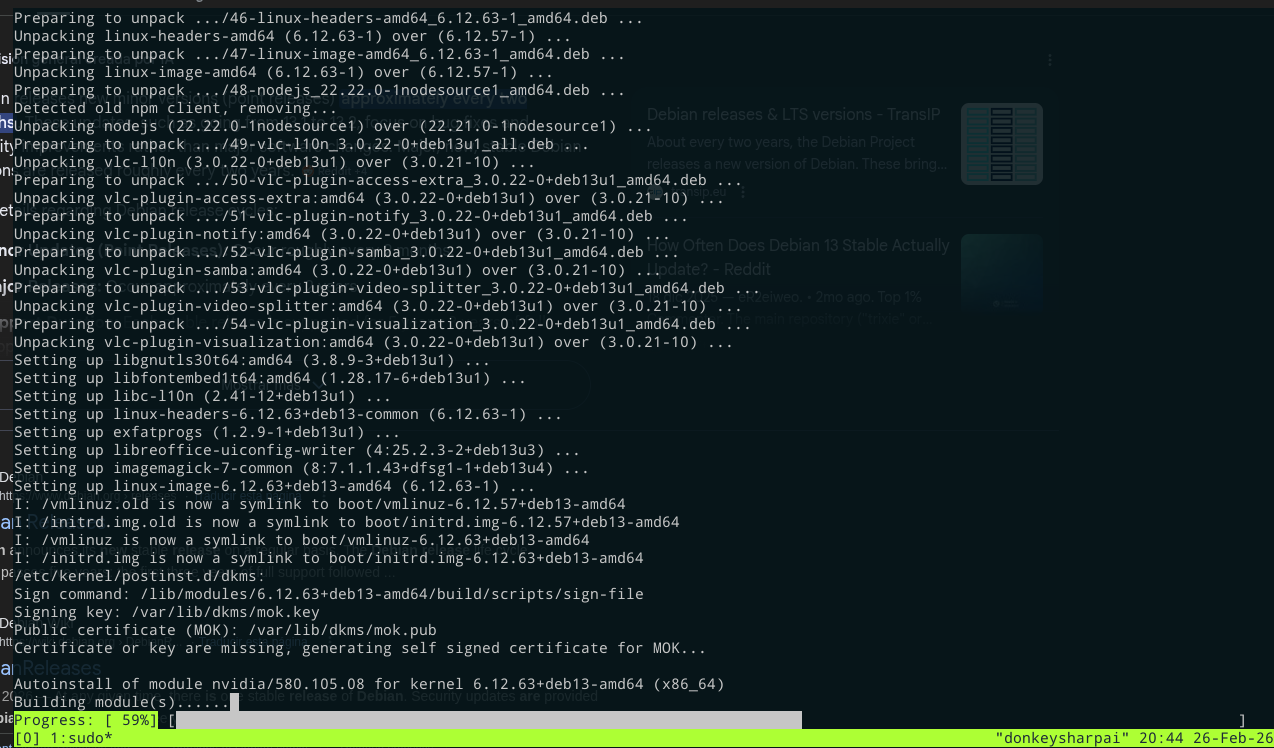
Upgrading my OS worked like a charm! No difficult steps.
Final thoughts
Personally, after testing both methods, I will stay with the not recommended method, just to see how it performs and experiment.
I actually had some issues with xfce4, it was not related to the method of installation, but with some compositor settings that started breaking with versions following 580.105.08. I will write it down with more detail on my next post on how to fix that issue.
As mentioned, Debian didn’t cause me any issues on a daily basis, but it makes sense as I use old hardware most of the time. As a matter of fact, I am writing this post from a Thinkpad T450 (released more than a decade ago). But this time I have hardware that is not old, it made sense that I would need to do some extra steps.
Happy hacking!